

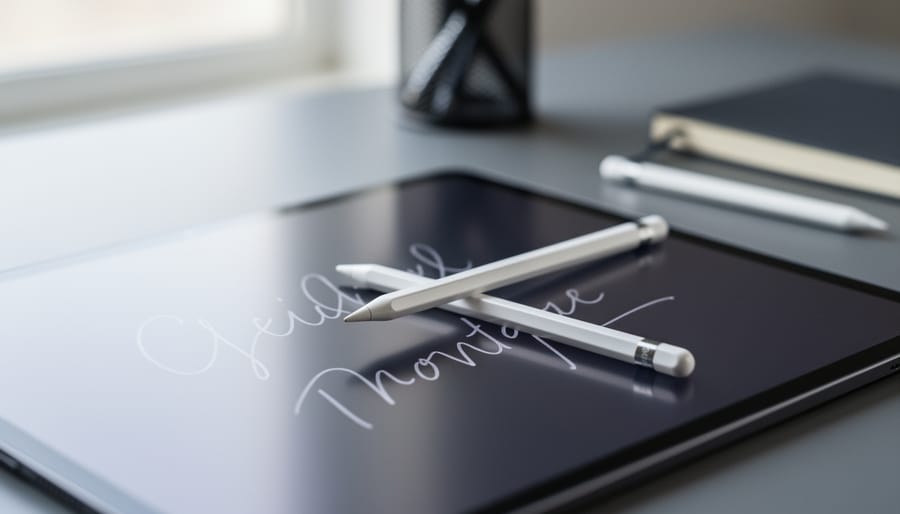
The Apple Pencil isn’t as “smart” as you might hope, at least not in 2026. While Apple markets it as a precision tool for artists and note-takers, the current models still lack many features that competing styluses from Samsung and others have offered for years: no handwriting recognition that automatically converts your scrawl to text, no gesture controls beyond basic taps, and surprisingly limited awareness of how you’re actually using it beyond pressure and tilt detection.
What makes the Apple Pencil valuable isn’t artificial intelligence or clever automation. It’s the exceptional hardware precision, near-zero latency when paired with compatible iPads, and seamless integration with iPadOS that turns your tablet into a legitimate creative workstation or digital notebook. The second-generation model added magnetic attachment and wireless charging, solving real workflow problems. The USB-C version brought the same core experience to budget-conscious users. But “smart” features? They’re mostly absent.
This creates a genuine dilemma if you’re shopping right now. The Apple Pencil excels at what it does, but competitors have pushed ahead with features like air gestures, voice recording synced to handwritten notes, and AI-powered text recognition that works in real time. Whether the current Apple Pencil makes sense for you depends entirely on how you plan to use it and whether you’re willing to wait for Apple to catch up. This guide breaks down exactly what the Apple Pencil can and cannot do today, compares it honestly against alternatives, and helps you decide if you should buy now or hold out for the next generation that might finally deserve the “smart” label.
The Apple Pencil Experience: What Works (And What Doesn’t)
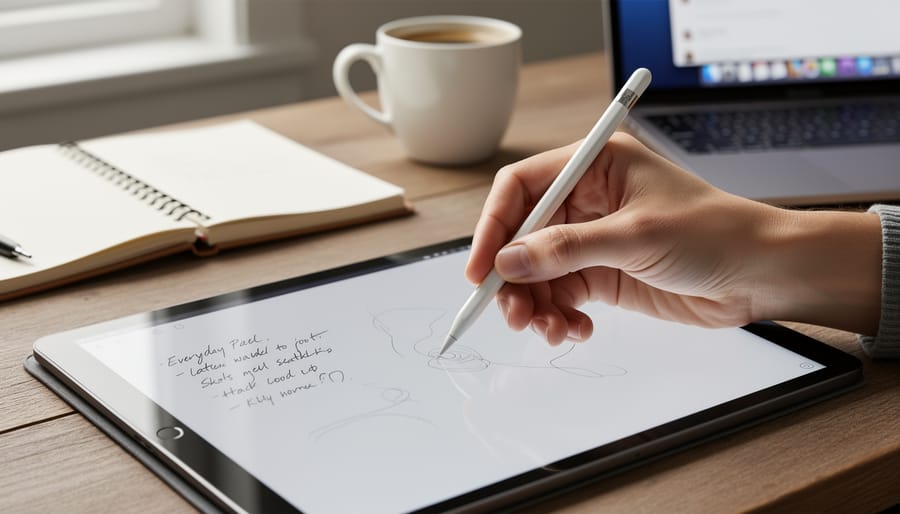
The Apple Pencil delivers an experience unlike any other stylus when it works well. The pressure sensitivity is genuinely impressive, capturing subtle variations in line weight that make digital sketching feel closer to paper. Palm rejection works so reliably that you can rest your hand naturally while writing, and the pixel-perfect precision means your strokes land exactly where you intend them. For digital artists and note-takers who’ve invested in the ecosystem, it’s hard to imagine going back to capacitive styluses or finger-based drawing.
But this premium tool comes with compromises that become more frustrating the more you use it. The magnetic attachment feels precarious in a backpack, and there’s no good answer for where your Pencil lives when you’re actually using your iPad flat on a desk. Battery anxiety is real, Gen 1 users never quite know when their Pencil will die mid-stroke, while Gen 2’s lack of a charge indicator means you’re making educated guesses. And for a device Apple markets as professional-grade, the inability to customize controls or program shortcuts feels like a missed opportunity.
Pros
- Industry-leading pressure sensitivity captures subtle artistic details other styluses miss
- Palm rejection works flawlessly across nearly all apps without configuration
- Low latency creates a natural writing feel that rivals pen on paper
- Seamless pairing and switching between compatible iPads
Cons
- Magnetic attachment makes it easy to lose or knock off during transport
- No battery indicator on Gen 1 creates frustrating surprise power loss
- Single tip option limits versatility for different tasks and materials
- No programmable buttons forces constant app-switching to change tools
- Premium pricing with no official storage or carrying solution
These frustrations matter because they’re not deal-breakers individually, but they accumulate. Each time you fish your Pencil out from under a couch cushion or watch it roll off a table, you’re reminded that smart doesn’t always mean thoughtfully designed. The core technology is brilliant, but the daily experience reveals gaps between what Apple Pencil does exceptionally well and what users actually need from a professional creative tool.
Battery Life: The Achilles’ Heel of the Smart Pen
Why Your Apple Pencil Dies at the Worst Times
You’re mid-sketch when the line goes faint, then stops. Or you’re taking notes in a meeting when the Apple Pencil simply quits. There’s no warning vibration, no persistent indicator nagging you to charge, just sudden powerlessness at the exact moment you need it most.
First-generation users face the worst experience. The only way of checking Apple Pencil battery requires swiping to the widgets screen, a step nobody remembers until it’s dead. Second-gen owners get a fleeting percentage pop-up when attaching magnetically, but it disappears in seconds and doesn’t remind you later.
This creates constant battery anxiety. You never know if you have 80% charge or 8%. Professional illustrators report stopping mid-project to charge preventively, disrupting creative flow. Students miss lecture notes because they assumed yesterday’s charge would last.
The Gen 1 charging method makes emergency top-ups awkward. Plugging it into the iPad’s Lightning port leaves a fragile, expensive stick jutting out, vulnerable to snapping. Fifteen seconds buys thirty minutes of use, but you need to interrupt whatever you’re doing to babysit this precarious setup.
Charging Solutions That Actually Make Sense
The most frustrating part about Apple Pencil battery management isn’t just that it dies unexpectedly, it’s that Apple has given us clunky charging methods that feel stuck in 2015. The original Apple Pencil’s Lightning adapter is easy to lose, and while the magnetic charging of Gen 2 is better, it’s still prone to accidental bumps that interrupt the charge. What users actually need are solutions that fit how they work, not how Apple thinks they should charge.
A dedicated wireless charging pad would be transformative. Imagine dropping your Apple Pencil onto a charging mat alongside your iPhone and AirPods, where it charges automatically without precise alignment. Companies like Wacom have offered charging stands for years that keep styluses ready and visible on your desk. Apple could easily integrate Qi charging or create a MagSafe-compatible charging dock that holds the Pencil securely while delivering power, no magnetic strip required, no getting knocked off mid-charge.
USB-C would solve multiple problems simultaneously. The industry has moved to USB-C, yet Apple Pencil users are tethered to their iPads for charging. A USB-C port on the Pencil would let you charge from any cable, power bank, or laptop, essential for people working remotely or traveling. Better yet, combine USB-C with improved power management that learns your usage patterns and conserves battery intelligently, the way AirPods do.
The real breakthrough would be smarter battery technology that simply lasts longer between charges. Current charging accessories help, but they’re workarounds for a fundamental design limitation. If Apple could extend battery life to a full week of heavy use, charging anxiety would largely disappear regardless of the method.
Precision and Control: Small Changes, Big Impact
The Case for Interchangeable Tips
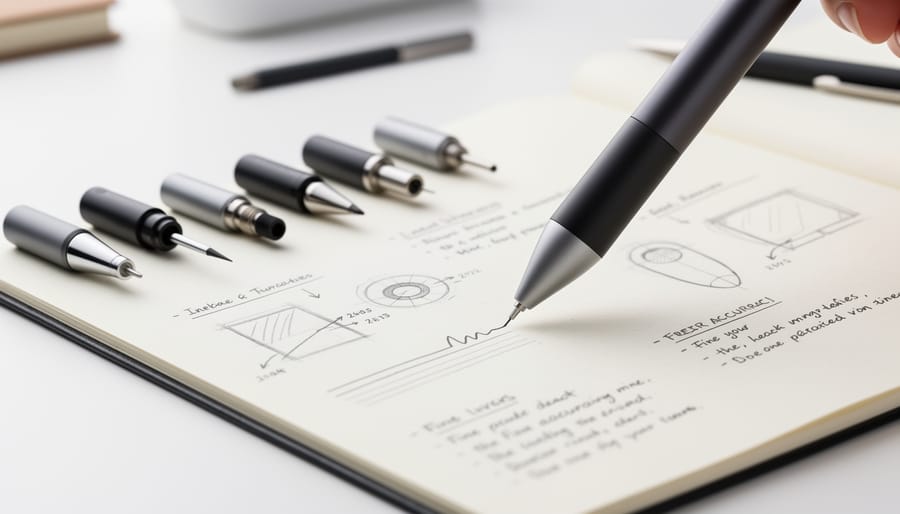
Anyone who’s used traditional drawing tablets or styluses knows that switching between different tip types is essential for different tasks. A fine nib for detailed line work. A softer, broader tip for shading and sketching. A firm point for precise note-taking. These aren’t luxury options, they’re fundamental tools that professionals rely on daily.
The Apple Pencil, despite its $129-$99 price tag, ships with exactly one tip option. That single hard plastic nib works reasonably well for general use, but it forces every user into the same experience regardless of their work. Digital artists constantly adjust pressure and angle to compensate for what a simple tip swap would solve. Note-takers who prefer a softer, quieter stroke on glass are stuck with the characteristic tap-tap-tap that echoes through quiet offices and libraries.
Third-party manufacturers have recognized this gap, offering the best pencil tips that range from fiber tips that mimic paper texture to metal nibs for ultra-precision CAD work. These aftermarket solutions prove there’s demand, but they shouldn’t be necessary. Wacom, Samsung, and other stylus makers include multiple tips in the box because they understand that one size doesn’t fit all creative workflows.
Apple could easily manufacture official tip variations with different hardness ratings, surface textures, and tip diameters. The engineering challenge isn’t complex, the pencil already has a removable tip mechanism. What’s missing is acknowledgment that different professionals have legitimately different needs.
Haptic Feedback: The Missing Sensory Element
Every time you tap to select a tool in Procreate or underline text in Notes, there’s a moment of doubt. Did that register? You glance at the screen for confirmation, breaking your flow. This micro-interruption happens dozens of times during any creative or note-taking session, and it’s completely unnecessary.
Haptic feedback would eliminate that uncertainty. Imagine feeling a gentle vibration when your pencil connects with the screen, a subtle pulse when you’ve successfully selected an object, or a distinct tap when you’ve triggered an undo gesture. Samsung’s S Pen already does this, and users report it makes the stylus feel more precise and responsive, even though the technical accuracy hasn’t changed. The tactile confirmation simply removes the mental overhead of constantly verifying that your inputs worked.
The benefits extend beyond basic confirmation. Different vibration patterns could distinguish between drawing and erasing, between hovering and touching, between accepted and rejected gestures. When you’re deep in a detailed illustration, these sensory cues would let you stay focused on your work instead of your tools. Your hand would know what’s happening without your eyes needing to check.
Apple has the Taptic Engine technology refined in every iPhone and MacBook trackpad. Building a miniaturized version into the Apple Pencil barrel is technically feasible. The question is whether Apple recognizes that truly smart accessories engage multiple senses, not just sight.
Smart Features Apple Pencil Should Have Borrowed by Now
Programmable Controls That Save Time
Every artist and note-taker knows the workflow killer: you’re sketching, you need an eraser, so you tap the screen. Then back to the brush. Then to adjust opacity. Then back to drawing. Each interruption pulls you out of creative flow and costs precious seconds that add up to minutes over a session.
Competing styluses like the Surface Pen and Wacom Pro Pen solved this years ago with programmable barrel buttons. A quick thumb click switches tools without touching the screen. Samsung’s S Pen even lets you assign air gestures to common functions. Meanwhile, Apple Pencil users are still tapping menus.
The double-tap gesture on Apple Pencil 2 was a start, but limiting users to switching between two tools feels half-baked. Why can’t we assign that gesture to undo, color picker, or layer switching? And why stop at one gesture when the Pencil’s surface could recognize long-press, triple-tap, or sliding motions?
Imagine programming the double-tap differently for each app: eraser in Procreate, highlighter in Notes, text selection in PDFs. Or system-wide shortcuts like screenshot, copy, or split-screen activation. These aren’t luxury features, they’re efficiency basics that professionals expect from a $130 stylus.
The hardware already has gesture detection. Apple just needs to open up the customization settings and let users configure controls that match how they actually work.
Air Gestures and Remote Control Capabilities
Picture this: you’re presenting your latest pitch deck, but instead of fumbling with a clunky remote or constantly walking back to your iPad, you simply wave your Apple Pencil to advance slides. Or you’re reviewing a long document, and rather than scrolling endlessly, a quick twist of the Pencil jumps to the next section.
This isn’t science fiction. Competitors like the Wacom Pro Pen 3 and Logitech Crayon already incorporate motion sensing for tasks like rotating canvases or triggering shortcuts. Apple has the sensors and software expertise to leapfrog these implementations, yet the Pencil remains anchored to direct contact with the screen.
Motion controls would transform how we interact with iPads across scenarios. During video calls, a sideways flick could mute your mic or switch cameras without reaching for tiny on-screen buttons. When annotating documents, tilting the Pencil could cycle through highlighter colors instead of interrupting your flow to tap a menu. For artists working on large canvases, air gestures could pan and zoom without lifting your hand from drawing position.
The presentation use case alone justifies the feature. Professionals who invest in iPad Pros and Apple Pencils often present wirelessly to external displays, but they’re forced to buy separate clickers or stay tethered to the tablet. Enabling the Pencil to function as a presentation remote would eliminate another device from the bag while leveraging hardware you already own.
Apple’s own AirPods prove the company understands gesture controls. Head nods answer calls; stem squeezes switch modes. Applying similar thinking to Apple Pencil feels overdue. The hardware likely supports it already, what’s missing is Apple’s willingness to expand the Pencil’s role beyond screen contact.
Making Apple Pencil Smarter Through Software
Software updates represent Apple’s fastest path to making the Pencil genuinely smarter, yet iPadOS continues to underutilize this input method in frustrating ways. While hardware improvements require new product cycles, intelligent software features could roll out tomorrow and dramatically improve how millions of people work with their Apple Pencil daily.
System-wide gesture shortcuts remain the most glaring omission. Currently, basic actions like switching between the last two apps require abandoning your workflow to swipe up from the dock or use awkward multitasking gestures. A double-tap on the Pencil barrel could cycle through recent apps, while a triple-tap might open Quick Note from anywhere. These aren’t revolutionary concepts, Samsung and Wacom styluses have offered similar functionality for years, but they’d eliminate the constant context-switching that breaks creative flow.
Handwriting recognition has improved substantially, but it still operates in isolated pockets rather than system-wide. Why can’t you scribble a contact name in Messages and have it auto-complete like typing does? Or write a calculation in Notes and have it solve automatically without invoking a separate calculator tool? Apple’s machine learning capabilities could analyze handwriting patterns to predict what you’re writing before you finish, offering auto-suggestions just like the keyboard does. The technology exists, it’s just not implemented where it matters most.
Smart palm rejection needs serious attention. Despite years of refinement, the iPad still occasionally interprets your palm as intentional input, creating stray marks that break concentration. Machine learning could study individual hand positions and grip styles, learning to distinguish between your palm, your fingers, and actual Pencil strokes with far greater accuracy than current blanket algorithms allow.
Context-aware tool switching would let the Pencil automatically select appropriate tools based on what you’re doing. Drawing over a photo? The markup tools appear. Writing in a text field? Handwriting mode activates. Hovering over a PDF? Annotation tools pop up. These intelligent defaults would eliminate the repetitive tool-hunting that currently wastes time across apps.
The hardware Apple’s already sold is capable of so much more. It just needs software that matches the sophistication users expect from a premium smart accessory.
The Accessory Ecosystem Problem
Why Apple Pencil Needs a Better Home
The magnetic attachment system seemed innovative when Apple introduced it, but daily use reveals a fundamental design flaw: your Apple Pencil constantly threatens to detach. Slip your iPad into a bag, and there’s a real chance the Pencil will separate during transit. The flat magnetic edge works reasonably well on a desk, but falls short for anyone who moves around with their device.
This problem becomes even more apparent when you examine competing tablets with stylus slots or built-in compartments. Samsung’s S Pen, for instance, lives inside the tablet itself, eliminating any chance of separation. Apple’s approach forces users into a frustrating position: either accept the magnetic attachment risk or hunt for third-party storage solutions that add bulk.
The lack of official Apple Pencil Pro accessories addressing storage feels particularly glaring. Apple sells iPad cases without meaningful Pencil protection, leaving users to browse Amazon for solutions that often compromise the device’s slim profile or interfere with charging.
Finding Your Lost Pencil Shouldn’t Be This Hard
If you’ve never frantically searched for your Apple Pencil minutes before a meeting or class, you’re in a rare minority. The slim profile that makes it comfortable to hold also makes it incredibly easy to misplace. While second-generation models appear in Find My, the experience is frustratingly limited compared to AirTags, there’s no precision finding, no directional arrows, and critically, no audio alert to help locate a pencil that’s fallen behind your desk or slipped between couch cushions.
Competitors like the Wacom Pro Pen offer clip attachments that prevent rolling, but Apple’s magnetic solution assumes your pencil stays attached to your iPad. A simple chirp function activated through Find My would eliminate countless hours wasted retracing steps. Even better, proximity alerts when you leave your pencil behind would catch those “left at the coffee shop” moments before they become expensive mistakes.
What a Next-Generation Smart Apple Pen Could Look Like
Imagine an Apple Pencil that learns from every frustration users have voiced over the past eight years. The next generation wouldn’t need to reinvent the fundamental design, it’s already excellent, but it would address the practical annoyances that interrupt creative flow dozens of times each day.
Battery life would jump to at least 15 hours of active use, with a visual indicator built into the barrel itself, three small LEDs that glow through the matte finish, eliminating charge anxiety completely. Wireless charging would work with any Qi pad, and a full charge would take under 30 minutes. The magnetic attachment to iPad would still work, but it wouldn’t be the only charging option.
The barrel would include two programmable pressure-sensitive buttons positioned naturally where your fingers rest. Double-tap remains, but now you could customize button functions per app: undo in Procreate, switch to eraser in Notes, advance slides in Keynote. Air gestures would let you scrub through timeline-based apps or trigger system-wide shortcuts without touching the screen.
Three interchangeable tips would ship in the box: precision (current standard), soft brush (for sketching), and firm (for writing). Each would magnetically attach and automatically calibrate. Haptic feedback would provide subtle confirmation, different vibration patterns for selections, strokes, and gestures, making the experience feel tangibly responsive rather than gliding over glass.
Find My integration would actually work reliably, with a speaker built into the cap that chirps when summoned. The Pencil would remember its last location even when the battery dies, and separation alerts would notify you before you leave it behind at a coffee shop.
This isn’t science fiction or wishful thinking about what to buy in 2026 every feature exists in competing products right now. Apple just needs to combine them into one cohesive tool that respects both creative professionals and casual note-takers equally.
The Apple Pencil remains one of the most capable styluses on the market. Its pressure sensitivity, tilt recognition, and seamless iPad integration deliver a writing and drawing experience that few competitors match. For creative professionals and serious note-takers, it’s still worth the investment in 2026.
But “worth it” doesn’t mean perfect. The frustrations we’ve explored, battery anxiety, missing programmable controls, storage headaches, aren’t dealbreakers. They’re missed opportunities. Apple doesn’t need to reinvent the Apple Pencil. They need to refine it by addressing the small irritations that accumulate over daily use.
If you need an Apple Pencil today, buy it. The current model won’t suddenly become obsolete, and waiting for hypothetical improvements could mean months without a tool you’d use constantly. The iPad Pro and Apple Pencil combination already transforms how people work and create.
That said, your feedback matters more than you might think. Apple pays attention to user forums, reviews, and feature requests. When enough people highlight the same pain points, like the lack of Find My audio alerts or interchangeable tips, those requests move from wish lists to development roadmaps.
The smart Apple Pen evolution isn’t about flashy reinvention. It’s about Apple listening to the thousands of artists, students, and professionals who use their stylus every day and saying, “We hear you. Here’s what we’ve fixed.” That conversation starts with users speaking up about what actually matters in their workflow.
